freedisk.space

Space makes sense here.

See what fills your computer. Follow the big folders. Review every removal before it happens.

The redesigned freedisk.space Overview on a demo Mac: 120 GB free of 500 GB, 29.3 GB that can be freed, what is using the disk, the biggest places and what is ready to free

Real render of the Mac app · demo files

Your files stay yours.

Scanning and analysis run on your computer, even across a full disk.

Follow the space.

Go from a block on the map to its folder, its files and why it’s there.

Decide before Trash.

Stage items in Cleanup, read the reason, then confirm the final move.

The film · 0:49

Every gigabyte has a name.

Your Mac says it’s full. freedisk.space shows you what’s filling it: the map, the space macOS hides, a cleanup that only ticks what rebuilds, and Put Back for anything you change your mind on.

Real app screens with demo files · “Where’s the rest?” arrives in the next update

Inside the Mac app

From “where did it go?”
to “there it is.”

Start with the map, decide what goes, and change your mind later.
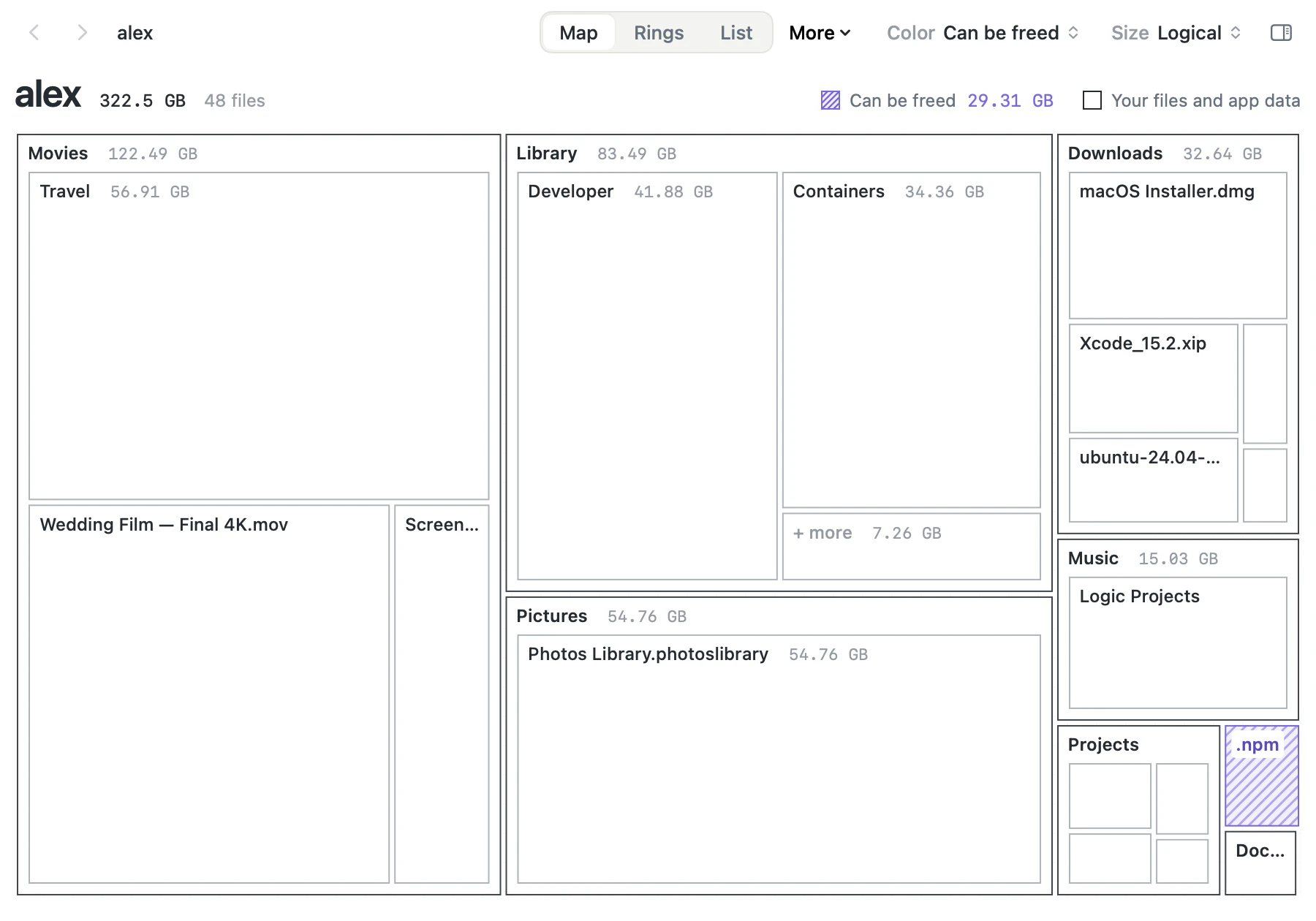
The Explore map of a demo home folder: Movies, Library, Pictures and Downloads drawn to their size, with .npm hatched because it can be freed

See the whole picture

Every folder becomes a block sized by the space it takes. Click one to go inside; hatched blocks are the ones that can be freed.
MapRingsList
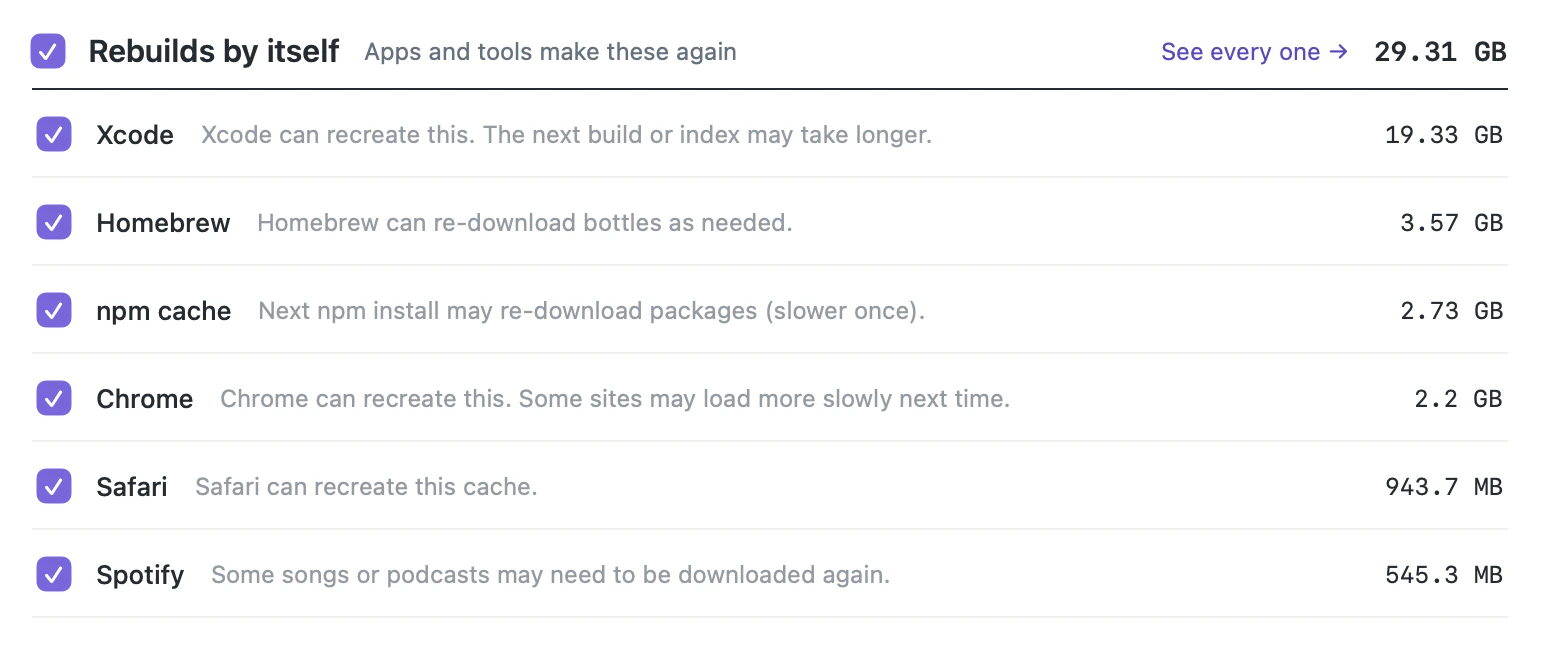
The Clean up list: Xcode, Homebrew, npm cache, Chrome, Safari and Spotify caches, each ticked, with what happens next time
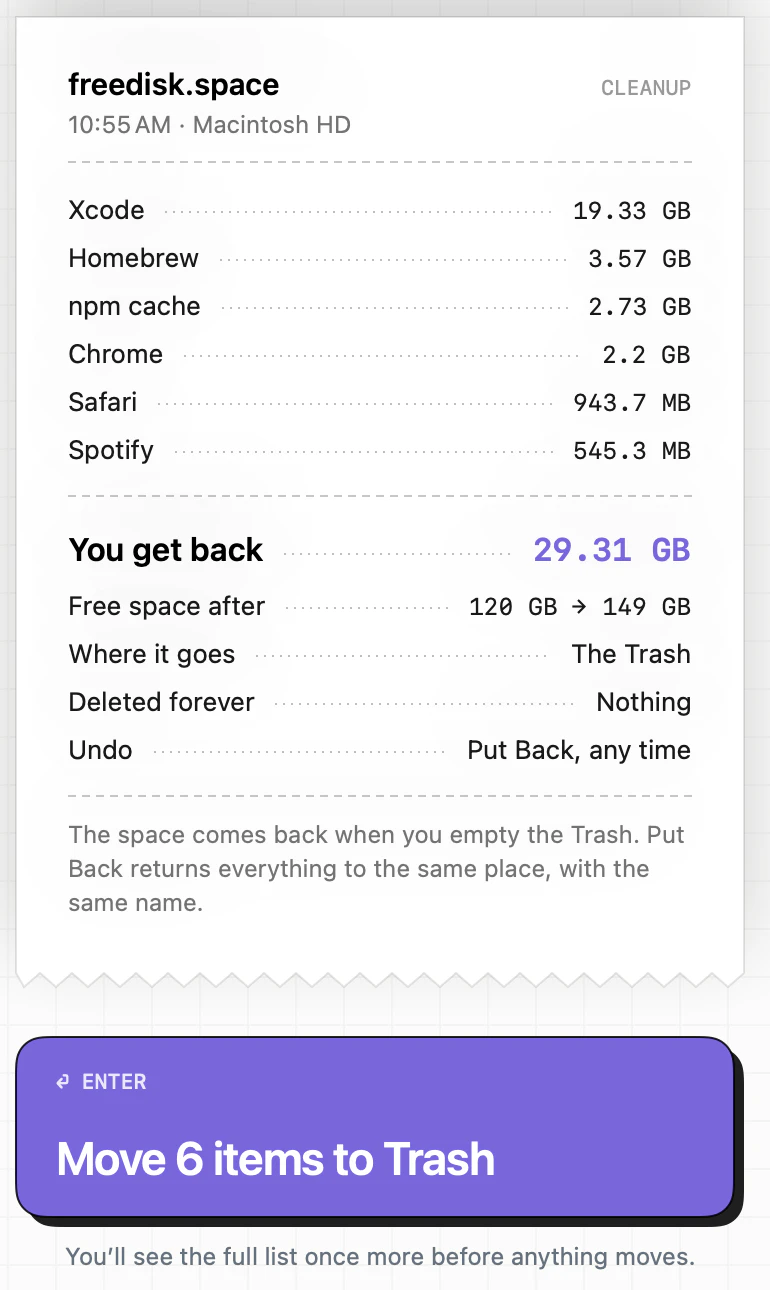
The Clean up receipt: 29.31 GB back, where it goes: the Trash, deleted forever: nothing, undo: Put Back

Decide what goes

Only caches and build files that rebuild by themselves start ticked. The receipt says what you get back, and that it all goes to the Trash.

Trash firstPut Back
Find anything (⌘K)The redesigned Mac app · demo files
The command palette over the What changed screen: clean up 29.3 GB, open Developer, Explore, biggest files, find with a query, duplicates, forgotten files, what changed

Find anything

Jump to a folder or a file, run a cleanup, or search with a query like size>500MB age>1y.

⌘Kfrom any screen
DuplicatesThe redesigned Mac app · demo files
The Duplicates screen: Thesis Final.pdf and Pitch Deck.key, two copies each, the oldest kept and the extra copy ticked, 160 MB back to the Trash

True duplicates only

Files with exactly the same contents, whatever their names. Files inside projects and apps are never ticked for you.

Byte for byteOldest copy kept
History & Put BackThe redesigned Mac app · demo files
History and Put Back: five demo cleanups, 63.8 GB freed, 0 files deleted permanently, Put Back buttons on items still in the Trash

Change your mind

Every cleanup is listed. While it is in the Trash, Put Back returns it to the same place with the same name.

HistoryPut Back

Screens from the Mac app · demo files · what’s new in 0.4.1

Download

Free. Local.
Yours.

No account. Your scans never leave your computer.

  1. 1Drag to ApplicationsOpen the DMG, drop the app in.
  2. 2Open Anyway, onceSystem Settings › Privacy & Security.
  3. 3Allow Full Disk AccessSo the scan sees everything.
  1. Click Done
  2. Open System Settings › Privacy & Security
  3. Click Open Anyway
Or in Terminal
xattr -dr com.apple.quarantine /Applications/freedisk.space.app

Choose your computer

Free
  • macOS 14 Sonoma or later
  • One universal DMG
  • Scans never leave your Mac
Download for MacDMG · 12 MB
Developer Storage

The storage your tools leave behind, explained.

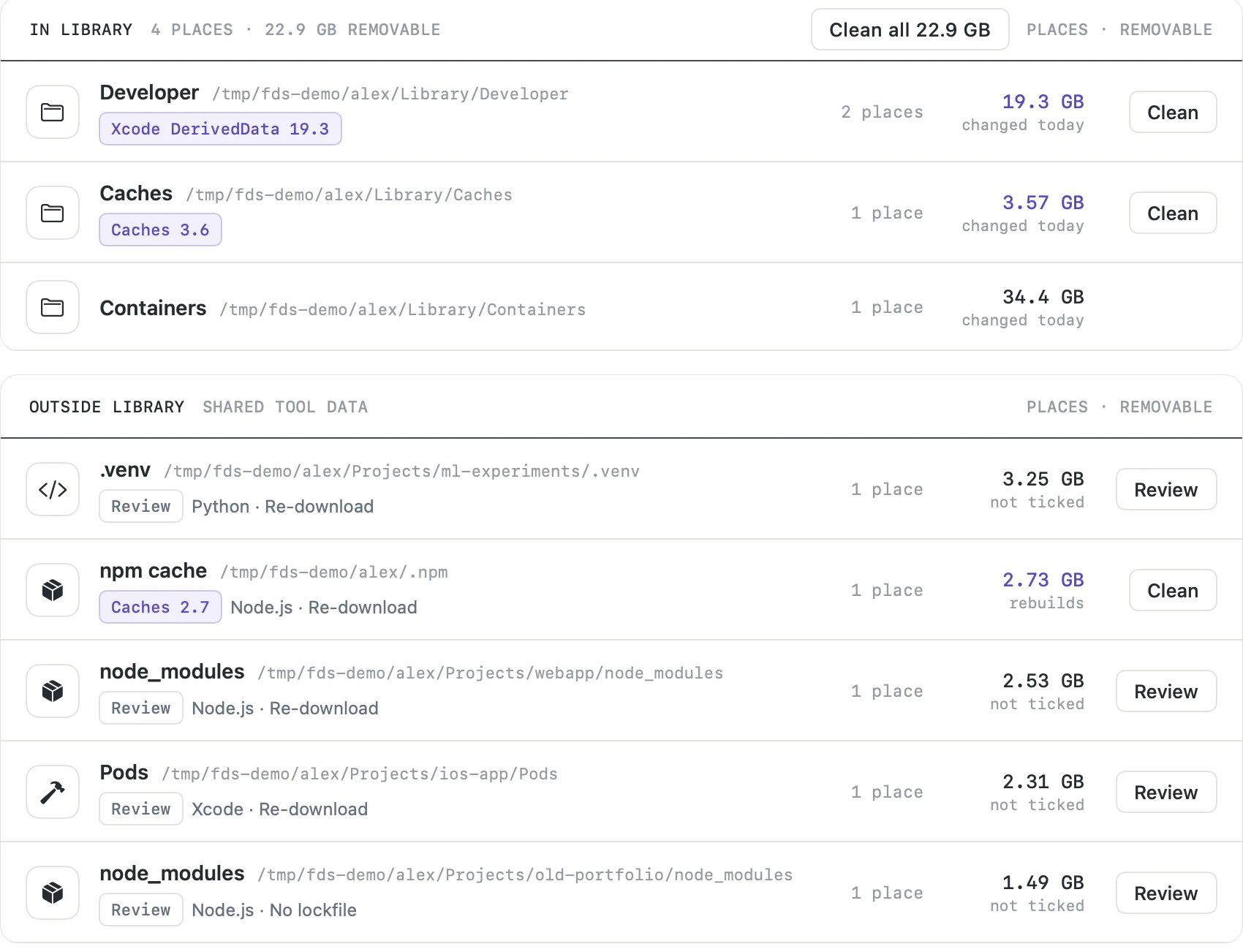
Dependencies, build output and caches, tied to the tool and the project that made them, with what it takes to get them back.

  • Xcode
  • Docker
  • Node.js
  • Python
  • Android
  • Rust
  • Flutter
  • Gradle
  • IDE and AI tool caches
  • See the project, not just the path.

    Artifacts grouped by tool and project, so you can see where the space sits.

  • Know the rebuild cost.

    Lockfiles and recent work tell an easy rebuild from one that needs care.

  • Keep the decision yours.

    Only what rebuilds by itself is offered for cleaning; the rest says Review.

Developer totals for the demo: Xcode 44.2 GB, Docker 34.4 GB, Node.js 6.75 GB, Other 3.57 GB, Python 3.25 GB2 projects untouched for 6+ months hold 4.74 GBWhere developer storage lives in the demo: Xcode DerivedData, caches and containers in Library; a Python .venv, the npm cache, node_modules and CocoaPods in projects; each marked Clean or Review
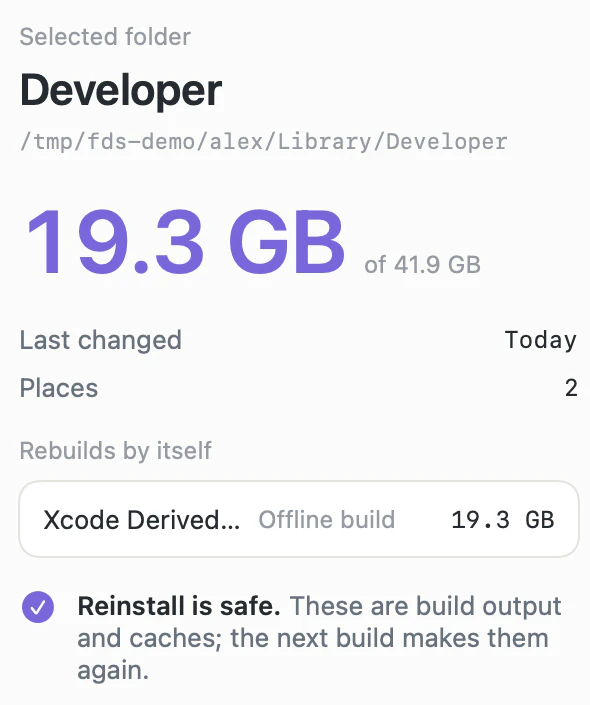
Inspector for Xcode DerivedData: 19.3 GB, rebuilds by itself, reinstall is safe, the next build makes it again
  • See the project, not just the path.

    Artifacts grouped by tool and project, so you can see where the space sits.

  • Know the rebuild cost.

    Lockfiles and recent work tell an easy rebuild from one that needs care.

  • Keep the decision yours.

    Only what rebuilds by itself is offered for cleaning; the rest says Review.

Why freedisk.space

Useful answers beyond “what’s large.”

Storage is more than a list of big files. These are the promises the app is built around.

Trash first. Put Back any time.

Nothing is removed in the background. Cleanups go to the Trash, and History & Put Back returns them to the same place, with the same name, while they are there.

Honest about duplicates.

APFS clones can look like copies while sharing the same blocks on disk. freedisk.space labels shared storage and keeps what it says you will get back conservative.

Open source, down to the Trash.

The code that moves a file is seven lines long, and you can read it. MIT licensed. Read it on GitHub

Mac and Windows.

Apps for macOS 14 or later, on Apple silicon and Intel, and for Windows 10 and 11.

Free. No account.

No trial, no subscription, no sign-in. Scans run on your computer and stay there.

Storage history

See what changed.

Save a scan, scan again later, and see which folders grew and which shrank, so you find the cause before you review a single file.

  • Scans saved on this computer, not in Time Machine
  • Compare any two of them
  • Open the folder that grew in Explore
freedisk.space

A better relationship with your storage.

Know what is using space. Keep what matters. Review the rest with confidence.

Download